ForgeSprite

Character Sprite Generator

Create a static 2D character concept from a brief or reference. Review the result in Studio; this workflow does not generate walk cycles or character turnarounds.

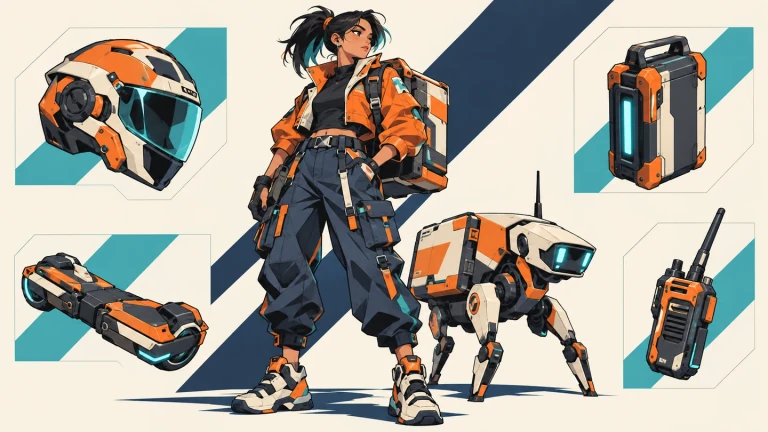
An orange-jacket courier, delivery robot and matching equipment.
Neon Couriers — prepared AI-generated character and gear artwork showing a visual direction, not a promised Studio result.
Start with a static courier character

Create one original static 2D urban courier character concept, full body in a relaxed standing pose, three-quarter view. Use a short orange jacket, navy trousers, a compact delivery backpack and cyan accents. Give the figure a readable silhouette, angular outlines and cel-shaded shadows with light from the upper left. Keep hands, shoes and the full silhouette within the canvas, with empty space around the character. Produce one character image, not an equipment board, animation sheet or multi-view turnaround. I will review the sample before requesting other assets.

Build a static character concept

  1. Describe one character

    Choose the role, pose, viewpoint, clothing and palette. Add a reference when you have one.

  2. Review the plan and image

    Open Studio, sign in, and review the credit quote before generation. Check the first result before expanding the brief.

  3. Refine and export

    Revise the selected version, inspect its dimensions and background, then download the PNG for your project.

Plan and review your 2D game character

Define one character

Pick a role, pose, viewpoint and palette. Start with one readable subject.

Read details

A useful 2D character generator brief begins with what the character does in the game. A merchant, healer and courier need different silhouettes and equipment. Choose a single subject and a single pose for the first request. State whether you want a full-body figure, a portrait or an isolated concept, and describe the viewpoint. This prevents a request for one character from turning into a busy scene or a presentation board with several unrelated views.

The example prompt above asks for one static courier, while the prepared artwork illustrates a wider character-and-gear direction. Edit the role and outfit to fit your world. Loading the prompt only fills the brief; it does not generate an image or spend credits. If you already have text in the composer, your draft is kept. Open Studio when you are ready to review the proposed task.

Guide the visual identity

Point out the silhouette, clothing and colors to keep. Check the result for consistency.

Read details

Attach a PNG, JPEG or WebP you have permission to use. Identify the details that should stay recognizable: the shape of a jacket, a hair silhouette, a backpack or a small set of colors. Explain what may change as well. A reference guides the generation request; it does not guarantee that every facial feature or proportion will be reproduced exactly. Inspect the actual output before treating it as the character's final design.

Review at game size

Inspect the silhouette, equipment and scale beside your existing art, not just in a large preview.

Read details

Compare the result at the size players will see in the game, not only in a large preview. The head, hands and main equipment should remain distinguishable. Check for clipped feet, merged straps, extra details and changes in lighting. If the character will appear beside existing props, compare their relative scale and outline weight. A requested display size is a design target; read the downloaded PNG dimensions rather than assuming the model returned a native sprite at that resolution.

Refine one version

Choose a version, request one concrete change and review the quote before confirming an edit.

Read details

In Studio, choose the version to revise and describe one concrete correction. For a selected-area edit, mark the affected region before asking for a different sleeve, pouch or color detail. Review the proposed work and credit cost before confirming. Compare the new version with the previous one, especially around the edge of the edited region. Exact recoloring is useful for known color replacements; a broader costume redesign needs a separate image edit and another visual check.

Check the PNG before import

Verify dimensions and alpha, then set the pivot and filtering in your engine. Pack finished frames separately.

Read details

Inspect dimensions, transparency and empty space around the character before importing it. A painted checkerboard does not count as transparency. Your game engine still needs its own scale, pivot and texture filtering settings. If you later have several finished PNGs, use Sprite Sheet Maker to pack those existing files with layout metadata. Packing static concepts does not turn them into animation frames, and the resulting JSON is not a native Unity or Godot character controller.

Static art, not motion

This entry creates static concepts. Walk cycles, rigs and matching character turnarounds need additional work.

Read details

Use this character sprite generator for static 2D game art and character exploration. It does not provide a verified way to generate consistent walking, jumping, attack sequences, rigged characters or matching front, side and back views. Those tasks need additional artwork and animation work. For pixel-style characters, use the dedicated pixel art entry and inspect the pixel structure carefully; an illustrated character does not become pixel-accurate merely by reducing its size.

Character generation questions

This workflow creates static character concepts. It does not generate a verified sequence of consistent animation poses. If you already have the frames, the sheet tools can arrange them and convert existing motion to a GIF.