Edit a selected area of a game asset
Choose an existing version in Studio, paint the area to change, and review the resulting version.
1. Open the asset in Studio
Open Studio, sign in, and choose your project. For a new image, use Add reference and wait for the upload. In Assets, open the image version you want to revise.
2. Choose Edit this version
Select Edit this version in the asset inspector. The chosen image becomes the editing reference. Under Paint the area to change, paint the affected area and adjust Brush size as needed. Use Undo selection or Clear selection to correct the mask.
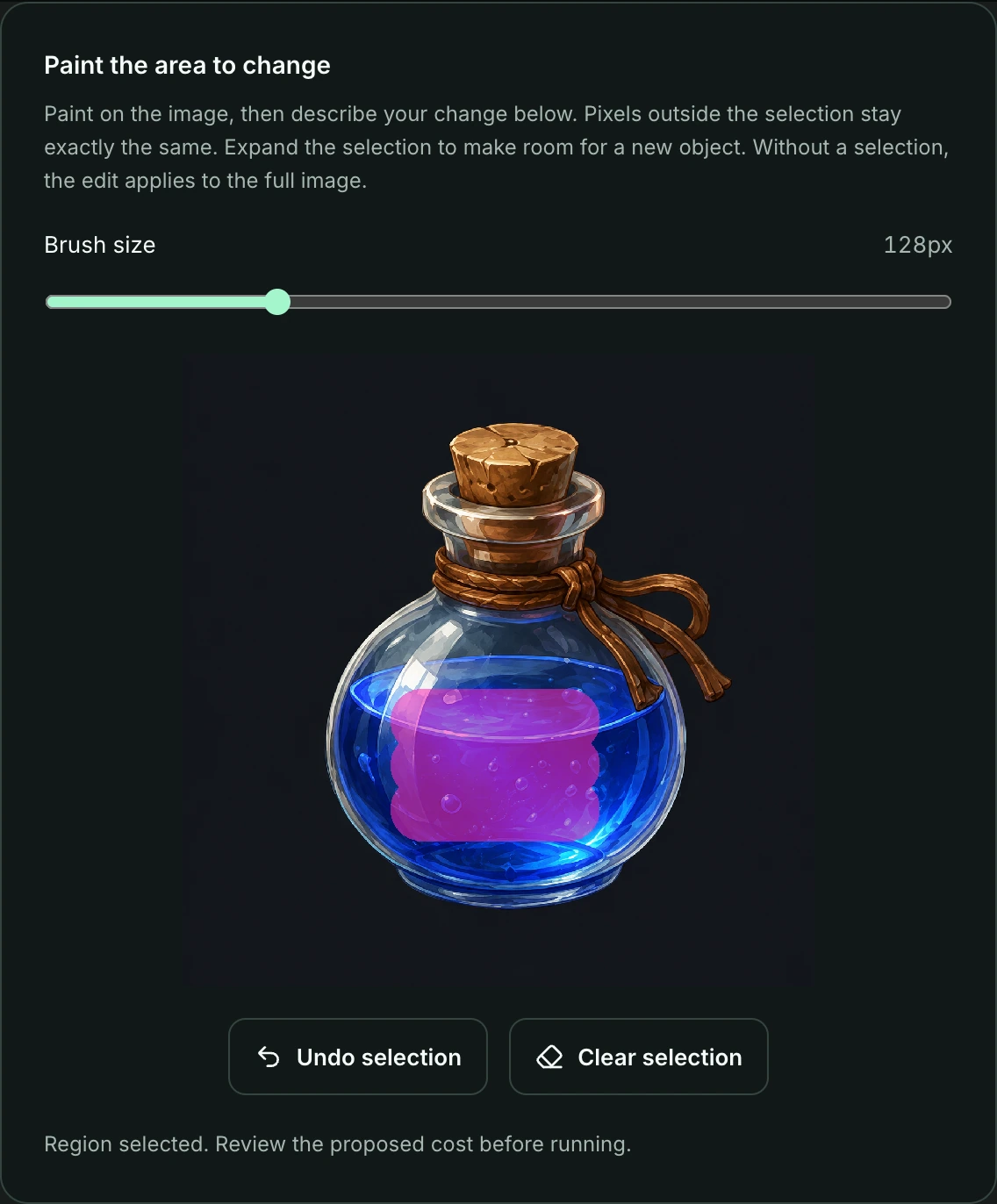
Prepared demonstration using the blue potion example. Purple marks the selected area; it is an overlay, not an edited result. Adjust the selection before choosing Review edit. 3. Describe the change and review the cost
Describe what should change inside the selection, then select Review edit. Review the proposed work and credit cost before running it. Leave enough selected space for a new shape; without a selection, the edit applies to the whole image.
4. Compare the new version
Open the new version and compare it with the original. Check the selected boundary, lighting, outline, and fit with neighboring assets. Keep or revise the version after inspection, then download the PNG you need.
Example instruction
Change the selected potion liquid from blue to warm amber. Keep the bottle shape, cork, outline, and highlight direction consistent with the original.
If you need to try again
If the selection is wrong, use Clear selection before sending another edit. If the output needs work, return to the earlier version and adjust the selected area or instruction. AI editing requires an available service and credits.